Thursday, August 29, 2013

How to Export a User Mailbox on Exchange Server 2010

  • Go to Exchange Powershell and enter the following;
New-MailboxExportRequest -Mailbox USERALIAS -FilePath \\someserver\users\USERALIAS.pst

This command starts building up the PST file on the location mentioned as \\someserver\users\USERALIAS.pst.


  •  To monitor the process type;
Get-MailboxExportRequest | Get-MailboxExportRequestStatistics

This will allow you to see the ongoing process.


After the job is done, you will see the "100%", now you can delete the export request.

 
  • Delete the export request by;


How to move System Mailboxes

Getting rid of the old mailbox database? Before you delete the old one, you have to move the system related mailboxes to the new one. This is how you do it on Exchange Server 2010;

Go to Powershell on your Exchange Server and enter:

  • Get-Mailbox -database YOUROLDDBNAME -Arbitration


You can see the entry in the red box.
 
  • Simply enter the following command which will start the move process
          Get-Mailbox -database YOUROLDDBNAME -Arbitration | New-MoveRequest -TargetDatabase YOURNEWDBNAME
 
 
  • You can monitor the process on EMC Move Request page
  • Since the mailbox is a small one, it would take less then a minute to be completed. Afterwards right click the request and select "Clear Move Request" to finish the job.
 

Wednesday, August 28, 2013

How to get WWN info on Hyper-V and Powershell

So you need to get the WWN numbers on your server (Windows Server 2012).


  • Open up a powershell with administrator privileges( Right click on powershell icon and choose "Run As administrator".

  • Run this command which will give you the WWN numbers :
                    Get-InitiatorPort


PS C:\Windows\system32> Get-InitiatorPort

InstanceName                  NodeAddress                   PortAddress                   ConnectionType
------------                  -----------                   -----------                   --------------
PCI\VEN_1657&DEV_0022&SUBS... 20008c7cff0d7d00              10008c7cff0d7d00              Fibre Channel
PCI\VEN_1657&DEV_0022&SUBS... 20008c7cff0d7d01              10008c7cff0d7d01              Fibre Channel


There you go.


Thursday, October 8, 2009

How to Change IP Settings Remotely

In order to edit or change the IP settings of a remote client in your enterprise, you would need some tools and a set of command line knowledge. To get there in no time, simply follow these steps:


* Download the PsExec tool. This tool helps you run software on remote machines over command line.


*Unpack the zip file under your c:\ . Open up a command line, navigate thru the pstools to find PsExec.exe .


* The command goes like this;


c:\psexec \\remotemachineip -u username -p password cmd.exe


\\remotemachineip : Here you can enter the IP of the remote client OR the computer name of the client. i recommend going for the IP to avoid DNS problems.

-u : user name that has administrative rights on the remote client. In an enterprise, please DO include the domain and the user name as domain\username.

Example : contoso\administrator01 .

-p : password of the user name that has administrative rights on the client machine.

cmd.exe : this is the tool we will need to edit ip settings.

* After entering the command , you will see some lines passing through and finally you will get c:\windows \system32 . This means that you have successfully logged in the client machine and its cmd.

* type netsh and press enter. Netsh is a tool that allows you to mess with your network settings.

*type int and press enter. int stands for Interface.

* Under netsh interface , enter this command that will change the IP settings.


ip set address local static theipnumber thesubnetmask thegateway metric


theipnumber : this is the desired ip address.

thesubnetmask : this is the subnet mask suitable for the desired IP

thegateway : gateway IP that will let the client machine to Internet

metric : the metric of the gateway that will prioritise the entries of different gateways respectfully.

Friday, July 17, 2009

How to Assign Computers to Groups on WSUS Server

Wsus server comes with an option that is used to manage designated updates for user created groups, so that an update needed on a computer can be installed without interfering other computers with different policy sets. To do that,

Open up the WSUS console from Administrative Tools menu. On the console open up "All Computers", right click and select "Add Computer Group..".


Input a desired name for the new group of yours.


Go to the "Options" screen and select "Computers".


I would recommend using the "Use the Update Services console" option. This way you are able to assign the computers directly from the WSUS console.


Now that you are ready to assign a computer to a group on WSUS Server, go to "Computers\All Computers\Unassigned Computers". Right click the computer name you want to process, click "Change Membership..",


and select the appropriate group.


Now go to "Updates\All Updates". If you don't see any updates, you may need to change the settings up in the "Approval" and "Status" combo boxes. Right click an update and select "Approve..".


Here you can see all the groups you create and assign an approved update to them.


After selecting multiple updates and approving those for installation or removal, the folloving screen appears and lets you know how the process is going.


WSUS Server is essential for mid size and large companies in order to keep up with the updates and not draining your internet speed.

Monday, June 22, 2009

Feed The Frog Please


A fully customisable frog gadget for your site. Available here along with other nice stuff.

Increase Exchange 2003 Standard Database Size

With Sp2, Microsoft Exchange 2003 Server database size had been increased to 18GB. Well nowadays a Bluray disc has 40GB of storage, even 18GB is not a big number anymore. However you may need a bigger space, as the Exchange server 2003 standard edition supports up to 75GB of data.

To increase the size of the database;

First enter "regedit" on the run box on the start menu.

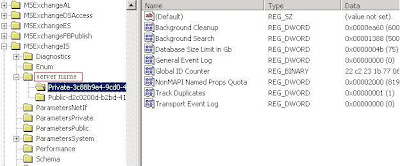
Then find these subkey

  • HKEY_LOCAL_MACHINE\SYSTEM\CurrentControlSet\Services\MSExchangeIS\\Private-GUID
  • HKEY_LOCAL_MACHINE\SYSTEM\CurrentControlSet\Services\MSExchangeIS\\Public-GUID
The GUID at the end of the subkey is a long folder packed with numbers and letters.

Enter a new DWORD Value for both of the subkeys. In the "New Value #1" box, type "Database Size Limit in GB", click OK. Right click the DWORD , click modify and enter the amount you wish to be your max database size. Don't forget to enter an integer from 1 to 75. 75GB sounds just good.

Close the regedit screen. Open up the Run box, enter "cmd". At the command prompt type;
  • net stop msexchangeis

After the service stops successfuly, type;
  • net start msexchangeis

All done! You can verify your success by taking a look at the event viewer console. Under "Application" tab, look for the event with the ID 1216.