Wednesday, December 16, 2015

How to add a new Skype for Business user using Control Panel


  • Go to "Users" tab on the left and select "Enable users".


  • Click the "Add" button


  • Type the user name or display name of the designated user, select tthe user from the list and click OK. !!!The user has to have a valid email address in order to have a Sip address(Skype account)!!!. Notice the first account will not be able to acquire a Sip address. The second one will.


  • After selecting the account, you have to assign the user to your pool from the dropdown menu, also select the policies accourding to your IT Policy and select "Enable".


Wednesday, December 9, 2015

KB3114409 causes Outlook 2010 to open on Safe Mode - How to exclude from WSUS

Outlook 2010 opens on safe mode after Windows Update KB3114409. Microsoft has accepted this issue and currently working on it. If you are having this issue as well, simply uninstall the update.

Go to Control Panel\Programs and Features, on left panel you will see " View installed updates". Click and search for KB3114409 and uninstall.

To stop spreading the defective update on Wsus, select "Updates\All updates" on the left panel. Select "Search" on the right panel and type KB3114409.

Right click both updates and select "Decline", Wsus will ask for confirmation, just accept it and you are safe.

!!!It would be wise to double click both updates and discover which computers got the update already, before declining KB3114409!!!

Friday, December 4, 2015

Automate Skype for Business Client setup using Office Customisation Tool (OCT)

  • Download Sykpe Client from Miscrosoft Volume Licensing Service Center.
  • From start menu, type "cmd" and right click "Run as Admin".
  • Mount the downloaded ISO file, type "D:\setup.exe /admin" assuming the mounted ISO image has the drive name "D".
  • Specify your company name
  • Under "Licensing and user interface" select KMS if you have it on your premises, MAK if you have ordinary key distributed over Microsoft licensing site. Be sure to select accept box to skip License Agreement.
 
         If you want the installation to be in silent mode and installation should not be cancelled, select "Suppres modal" and "No cancel".
  • Under "Remove previous installation" tab you can select if the setup removes previous versions or not.
  • Under "Modify Setup properties" tab, enter "AUTO_ACTIVATE" with the value "1" in order to trigger auto activation.
  • Save your work, extract the ISO file (you can use WinRar) and place the saved file under "updates" folder.
  • If the user has not administrative privilages on the computer, the installation will fail. So it may be wise to press shift key on your keyboard and right click the setup icon, select "Run as a different User" and enter an admin credential.


Tuesday, September 29, 2015

How To Upgrade Windows Server 2008 R2 Standard Edition to Enterprise Edition


First open up a command prompt with administrative privileges.


Then,
 
 
  • To determine the installed edition, run:
 
DISM /online /Get-CurrentEdition
 
 
  • To check the possible target editions, run:
 
DISM /online /Get-TargetEditions
 
 
  • In order to upgrade the server, run the following command:
 
DISM /online /Set-Edition: /ProductKey:XXXXX-XXXXX-XXXXX-XXXXX-XXXXX
 
 
  • Notice the "edition ID" should be one of the outputs from "DISM /online /Get-TargetEditions"
Such as  "ServerDatacenter" or "ServerEnterprise"

  • ProductKey should be a generic key assigned by Microsoft. This is a KMS key. Use the following key: 489J6-VHDMP-X63PK-3K798-CPX3Y

Example:    DISM /online /Set-Edition:ServerEnterprise /productkey:489J6-VHDMP-X63PK-3K798-CPX3Y

Here is the link for the official site that holds the keys:
https://technet.microsoft.com/en-us/library/jj612867.aspx
  • After applying the command below, reboot your server and notice that the server is upgraded and awaiting activation. You can enter your own key and activate the server.

PS: you can not do these on a DC. Demote the domain controller first, then upgrade.


Thursday, August 29, 2013

How to Export a User Mailbox on Exchange Server 2010

  • Go to Exchange Powershell and enter the following;
New-MailboxExportRequest -Mailbox USERALIAS -FilePath \\someserver\users\USERALIAS.pst

This command starts building up the PST file on the location mentioned as \\someserver\users\USERALIAS.pst.


  •  To monitor the process type;
Get-MailboxExportRequest | Get-MailboxExportRequestStatistics

This will allow you to see the ongoing process.


After the job is done, you will see the "100%", now you can delete the export request.

 
  • Delete the export request by;


How to move System Mailboxes

Getting rid of the old mailbox database? Before you delete the old one, you have to move the system related mailboxes to the new one. This is how you do it on Exchange Server 2010;

Go to Powershell on your Exchange Server and enter:

  • Get-Mailbox -database YOUROLDDBNAME -Arbitration


You can see the entry in the red box.
 
  • Simply enter the following command which will start the move process
          Get-Mailbox -database YOUROLDDBNAME -Arbitration | New-MoveRequest -TargetDatabase YOURNEWDBNAME
 
 
  • You can monitor the process on EMC Move Request page
  • Since the mailbox is a small one, it would take less then a minute to be completed. Afterwards right click the request and select "Clear Move Request" to finish the job.
 

Wednesday, August 28, 2013

How to get WWN info on Hyper-V and Powershell

So you need to get the WWN numbers on your server (Windows Server 2012).


  • Open up a powershell with administrator privileges( Right click on powershell icon and choose "Run As administrator".

  • Run this command which will give you the WWN numbers :
                    Get-InitiatorPort


PS C:\Windows\system32> Get-InitiatorPort

InstanceName                  NodeAddress                   PortAddress                   ConnectionType
------------                  -----------                   -----------                   --------------
PCI\VEN_1657&DEV_0022&SUBS... 20008c7cff0d7d00              10008c7cff0d7d00              Fibre Channel
PCI\VEN_1657&DEV_0022&SUBS... 20008c7cff0d7d01              10008c7cff0d7d01              Fibre Channel


There you go.


Thursday, October 8, 2009

How to Change IP Settings Remotely

In order to edit or change the IP settings of a remote client in your enterprise, you would need some tools and a set of command line knowledge. To get there in no time, simply follow these steps:


* Download the PsExec tool. This tool helps you run software on remote machines over command line.


*Unpack the zip file under your c:\ . Open up a command line, navigate thru the pstools to find PsExec.exe .


* The command goes like this;


c:\psexec \\remotemachineip -u username -p password cmd.exe


\\remotemachineip : Here you can enter the IP of the remote client OR the computer name of the client. i recommend going for the IP to avoid DNS problems.

-u : user name that has administrative rights on the remote client. In an enterprise, please DO include the domain and the user name as domain\username.

Example : contoso\administrator01 .

-p : password of the user name that has administrative rights on the client machine.

cmd.exe : this is the tool we will need to edit ip settings.

* After entering the command , you will see some lines passing through and finally you will get c:\windows \system32 . This means that you have successfully logged in the client machine and its cmd.

* type netsh and press enter. Netsh is a tool that allows you to mess with your network settings.

*type int and press enter. int stands for Interface.

* Under netsh interface , enter this command that will change the IP settings.


ip set address local static theipnumber thesubnetmask thegateway metric


theipnumber : this is the desired ip address.

thesubnetmask : this is the subnet mask suitable for the desired IP

thegateway : gateway IP that will let the client machine to Internet

metric : the metric of the gateway that will prioritise the entries of different gateways respectfully.

Friday, July 17, 2009

How to Assign Computers to Groups on WSUS Server

Wsus server comes with an option that is used to manage designated updates for user created groups, so that an update needed on a computer can be installed without interfering other computers with different policy sets. To do that,

Open up the WSUS console from Administrative Tools menu. On the console open up "All Computers", right click and select "Add Computer Group..".


Input a desired name for the new group of yours.


Go to the "Options" screen and select "Computers".


I would recommend using the "Use the Update Services console" option. This way you are able to assign the computers directly from the WSUS console.


Now that you are ready to assign a computer to a group on WSUS Server, go to "Computers\All Computers\Unassigned Computers". Right click the computer name you want to process, click "Change Membership..",


and select the appropriate group.


Now go to "Updates\All Updates". If you don't see any updates, you may need to change the settings up in the "Approval" and "Status" combo boxes. Right click an update and select "Approve..".


Here you can see all the groups you create and assign an approved update to them.


After selecting multiple updates and approving those for installation or removal, the folloving screen appears and lets you know how the process is going.


WSUS Server is essential for mid size and large companies in order to keep up with the updates and not draining your internet speed.

Monday, June 22, 2009

Feed The Frog Please


A fully customisable frog gadget for your site. Available here along with other nice stuff.

Increase Exchange 2003 Standard Database Size

With Sp2, Microsoft Exchange 2003 Server database size had been increased to 18GB. Well nowadays a Bluray disc has 40GB of storage, even 18GB is not a big number anymore. However you may need a bigger space, as the Exchange server 2003 standard edition supports up to 75GB of data.

To increase the size of the database;

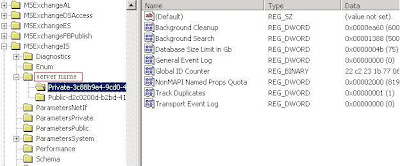
First enter "regedit" on the run box on the start menu.

Then find these subkey

  • HKEY_LOCAL_MACHINE\SYSTEM\CurrentControlSet\Services\MSExchangeIS\\Private-GUID
  • HKEY_LOCAL_MACHINE\SYSTEM\CurrentControlSet\Services\MSExchangeIS\\Public-GUID
The GUID at the end of the subkey is a long folder packed with numbers and letters.

Enter a new DWORD Value for both of the subkeys. In the "New Value #1" box, type "Database Size Limit in GB", click OK. Right click the DWORD , click modify and enter the amount you wish to be your max database size. Don't forget to enter an integer from 1 to 75. 75GB sounds just good.

Close the regedit screen. Open up the Run box, enter "cmd". At the command prompt type;
  • net stop msexchangeis

After the service stops successfuly, type;
  • net start msexchangeis

All done! You can verify your success by taking a look at the event viewer console. Under "Application" tab, look for the event with the ID 1216.

How to Clean Your Exchange Log Files

Exchange log files usually take a lot of space if you don't automate a backup to run from some time to time. If you find yourself out of space on your drive, here is the thing to do.
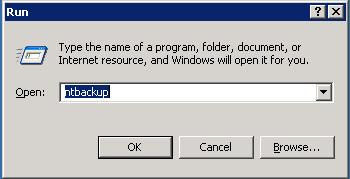
From Start menu, type "ntbackup" on the run box.


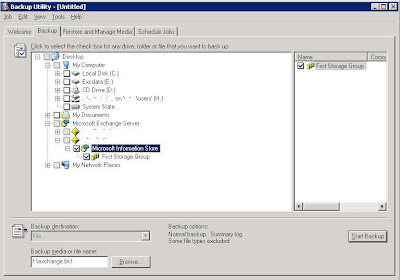
Backup Utility screen appears. Select the "Backup" tab and go to the "Microsoft Exchange Server" box, expand and click "Microsoft Information Store".


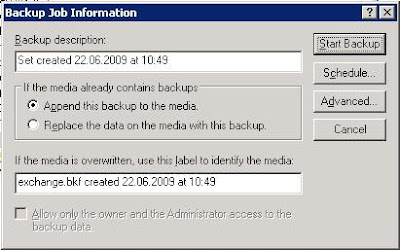
The following screen gives you some info and schedule options.


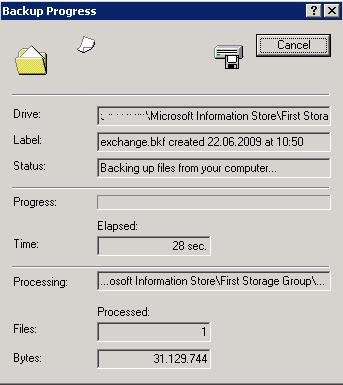
And here is the screen that you can watch the statistics till the end.


After a nice backup of Exchange Information Store, ntbackup simply deletes the log files, freeing the space you need.

Thursday, June 18, 2009

Enabling Websense to Find Domain Objects

After setting up Websense Enterprise Server to be your faithful proxy server, you would probably want to add some domain groups and manage them.

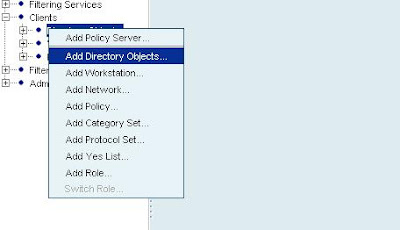
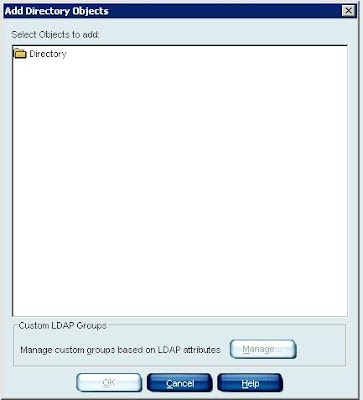
To do that you right click on the Websense console, select "Add Directory Objects..."


"Select Objects to Add" box opens up. And you double click the "Directory" folder.

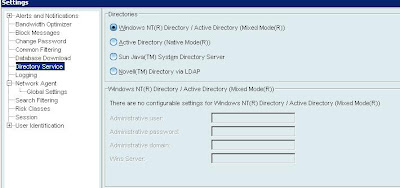
But instead of showing up the domain objects, you get an error telling you to check the "Directory Service"configuration under the "Settings" menu. If you read the help files, then you SHOULD know that you won't need to mess with the Directory Settings, as the "Windows NT Directory/Active Directory (Mixed Mode) option should be selected.


What you NEED to do is to simply give permissions to a service.


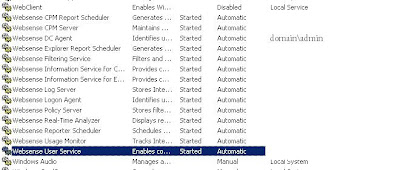
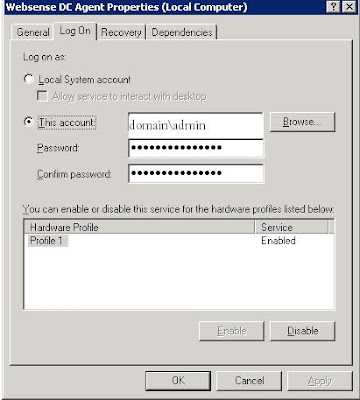
"Websense User Service" and "Websense DC Agent" needs to access the domain controllers. Therefore, right click on one of the services, select "Properties". On the "Log On" tab, select "This Account" and enter your domain admin credentials. Do this for the services mentioned above. Restart the services. All done!

How to Exclude an Address Being Filtered by Proxy Server on Internet Explorer

So you need to set up a connection to a designated address but the connection is filtered by the proxy server even tough you excluded the address or configured the server not to(In my case it was the frikkin Websense and ISA server combo). Thank Bill for adding a small box into the Internet Explorer that helps us to bypass the proxy check and go directly to the site.
3 single steps to fool your proxy server.

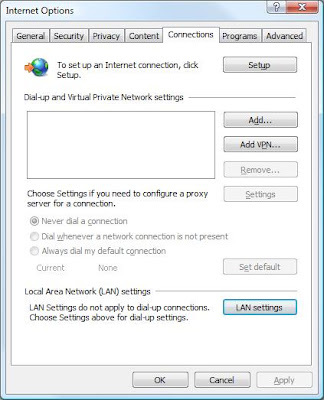
First open the "Internet Options" from control panel.


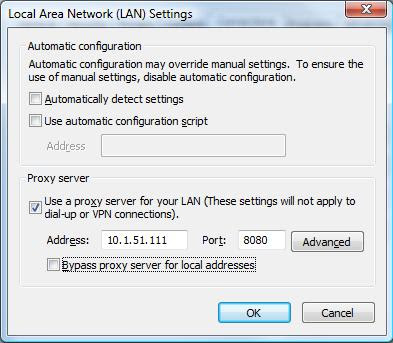
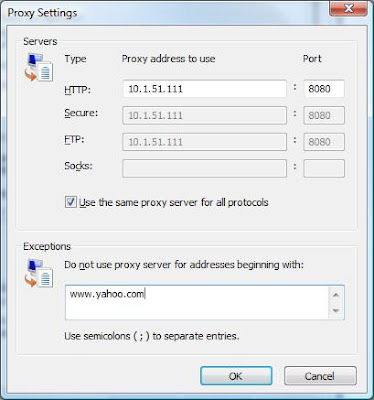
Then go to "connections", "LAN settings". Click "Advanced" on the following menu.


The "Exceptions" box, is the solution. What ever you enter in this box, Internet Explorer will skip redirecting requests to the proxy server.


By the way, if you want this to work properly, your gateway should be able to access the Internet on its own, eliminating the need for a proxy server distributing Internet. Or you can always enter custom route of course.

Wednesday, June 17, 2009

Force Wsus Server to Update Computers

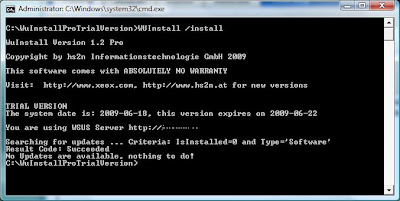
Tired of waiting for the Wsus server to update the client computers? There is a simple solution for that. Comes with a trial version, WuInstall is a software that triggers available windows updates. You can search and install the new updates on demand.


Easy to use, just got to the directory where the exe resides. Add the switch "/install" to search and install the available updates.

Tuesday, June 16, 2009

Setting/Resetting a Password Of Your Windows User

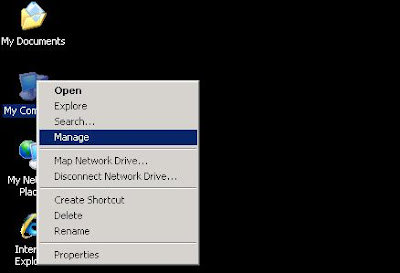
Pretty simple. Locate "My computer" icon. Right click the icon and find "Manage".


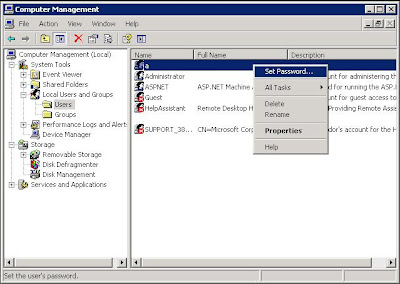
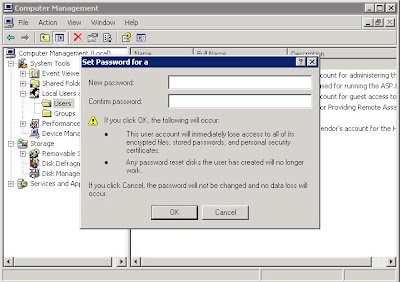
On the "Manage" screen select "Local Users and Groups"\"Users" and find the user name that is to be configured. Right click on the user name and select "Set Password...". I always wondered what those ... symbols represent at the end of Set Password option.


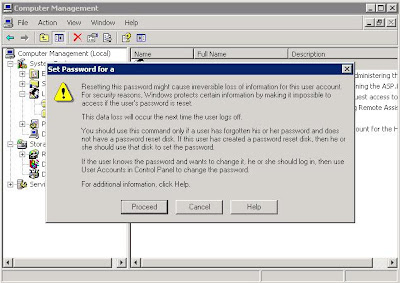
The following screen indicates some important stuff which we will never read. Take a look if you want. It's a warning about how you can ruin your computer just by resetting your password. Pure crap with steam on it. Just select "Proceed" button.


Enter the new password twice and you are good to go.


Yes, that's it . What did you expected anyway? And by the way, from now on users without passwords will have to enter their password at start up screen and on the lock screen.

How to See Windows Shares on a Mac

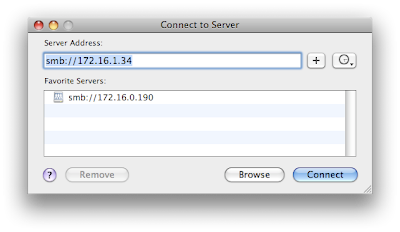
Thanks to Mr. Appleseed, it is pretty easy. Press the command(apple)+K on Mac's keyboard. A screen will appear like this.

The Server Address box comes empty. You should enter the ip address of the designated computer which you want access to. However since you are trying to connect to a Windows machine from a Mac, you put "smb://" in front of the ip. I strongly recommend using ip numbers instead of computer names. No need to add extra the DNS troubles, right?
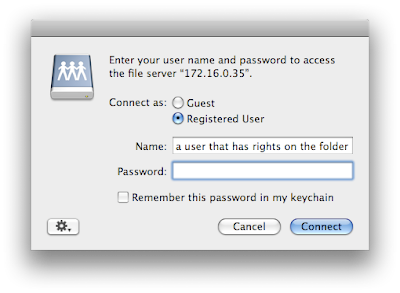
Click "Connect" and a log on screen appears.

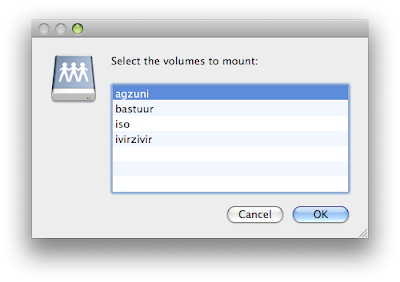
By default you will see your name on the log on name box. You have to supply a user name that has access rights on the shared folder. Then click connect again and after a successful log on, you will see a screen similar to this with your beloved folder in it.
If you are not on a Windows domain but on a Workgroup(like most home users) you have to have a user that has access to the Windows computer with password enabled. If you log on to your Windows computer just by pressing the power button and waiting to see the desktop, you need to set a password to your account.